This help will guide you through the setup and usage of our point of sale cash register software.
Search by keyword in the help section:
📷 Barcodes
When the barcode setup is complete, you can begin entering orders using the barcode scanner.
Simply navigate to the order entry page (keyboard) and then start scanning items.
Practical handling with a laser scanner
The laser scanner is an essential purchase for your establishment.
- Makes barcode reading easier.
- Compatible with all media.
Convenient handling with a lens (smartphone camera)
At first it may seem difficult to read barcodes quickly, but it quickly becomes more efficient with a little practice.
- Orient the barcode horizontally.
- Maintain a distance of at least 10 cm from the sensor.
- Use good lighting.
- On Android, use the volume buttons to start/stop playback.
- Make sure the object is still for proper focus.
On the cash register keyboard, use the "Barcode" button to activate the aiming pointer.
When a code is recognized, your device will emit a sound (and a vibration if possible).
Manually entering a code
If a barcode is not detected, you can enter it manually.
- Press the space bar.
- Enter the code on the numeric keypad.
- A sound is played as soon as a matching item is found.
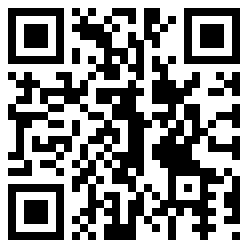
If you want to do some testing, you can print this barcode:
Test barcode
Tests and tools
 This document is made available under the terms of the licence Creative Commons Attribution 4.0 International (CC BY 4.0) .